Your Windows PC might be doing something you didn’t expect. As you read, work, or play, it sends bits of update files to other computers around the world. It sounds weird at first, but it’s not caused by a bug or malware. It’s part of Windows’ Delivery Optimization.
Delivery Optimization is designed to make updates quick and easy for everyone. But the idea of using your network to send updates to strangers can feel low. In addition, there are also a few other things that make it worth a second look.
What Delivery Optimization actually does
In the Windows peer-to-peer update engine
Normally, when you download an app or update, your computer goes directly to Microsoft’s servers and downloads everything from there. Delivery Optimization is Microsoft’s peer-to-peer optimization system that changes that. Instead of pulling updates only from Microsoft’s servers, this feature allows your PC to get the same update features from other computers on the local network that already have them.
Your computer can download bits of update files from other PCs on the Internet. On the other hand, your PC does the same. It shares files with other PCs on the local network and the Internet. This works for Windows updates and Microsoft Store app downloads.
This does two things. First, it helps reduce the bandwidth needed to keep your PC up and running, which is ideal if you have a limited internet plan. It also eases the load on Microsoft’s servers when your PC receives files directly from other PCs.
The good thing here is that Delivery Optimization does not affect your content, so there is no need to worry about privacy. Also, when updating files and applications from other PCs, the same security measures are applied. This means you don’t have to worry about the authenticity of the copies.
Why this feature can be a problem
The hidden costs of fast updates

Delivery Optimization may sound harmless, but it can cause a number of problems that make it a little less desirable.
The biggest is the use of recent data. It’s fine when you’re downloading updates yourself, but when your computer is downloading updates to other PCs on the network, it can make your connection feel sluggish. For example, if you’re playing online or making a video call, this feature can sometimes affect those things at the worst possible time. This is an even bigger issue if you’re on a limited network plan and haven’t set up your connection as metered in Windows.
Another problem with Delivery Optimization is that it creates a local cache to store update files even after they are installed. This, of course, comes at the cost of disk space. Although Windows keeps this cache only for a short time, it can be a problem for anyone who is already struggling with storage space.
Recently, I ended up recovering about 20GB of storage by deleting old Delivery Optimization files. But the catch is that this space won’t stay free for long. It’s only a matter of time before Windows is replenished with new update files.
In some cases, Delivery Optimization can slow down your PC. Some Reddit users have reported sudden spikes in RAM usage due to this feature. It’s not something that happens often or on every PC, but when it does, it can be a big mess.
Yes, Delivery Optimization is safe and useful, but the trade-off is your bandwidth, increased storage usage, and sometimes affects your system performance.

This registry process ended up stopping Windows updates from draining my bandwidth
This smart registry function has stopped Windows Update from draining my bandwidth for good.
To stop Windows from sharing update files with others
Keep your bandwidth to yourself
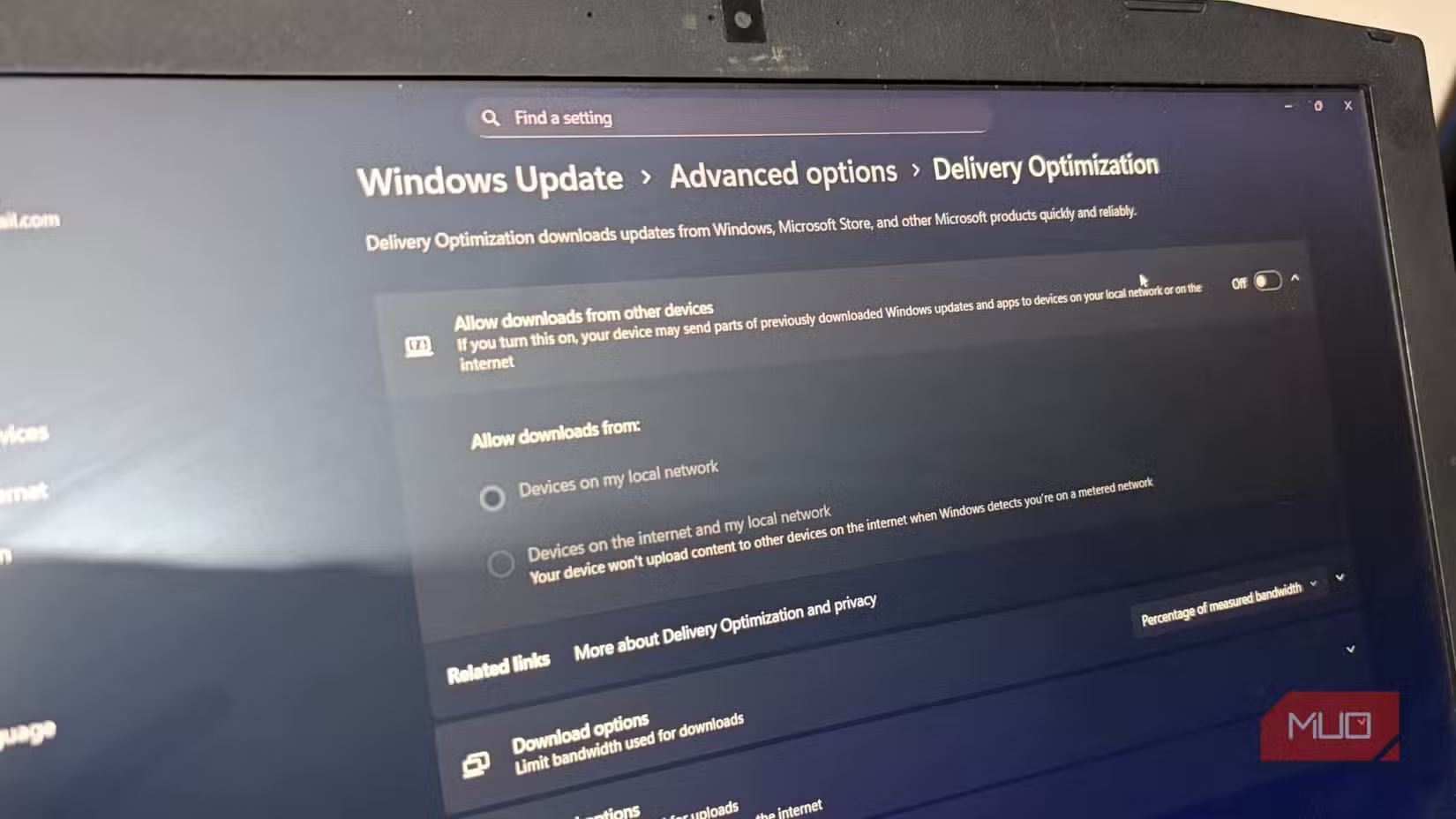
If the idea of your PC sharing update files in the background doesn’t sit well with you, it’s easy to stop. For this, return to Settings > Windows Update > Advanced options > Delivery update. At that time, turn off the Allow downloading of other applications toggle. It’s over with luck. Your computer will now download updates directly from Microsoft and won’t use your network to share information with others.
If you don’t want to turn the feature off completely, there is a nice middle ground. You can choose to allow sharing only between PCs on your local network. This way, your Windows PCs can benefit from faster updates, but the internet connection is not used to upload data to strangers online.
Windows even offers an option to limit how much bandwidth Delivery Optimization can use. You can set caps on both downloads and acceleration so that the feature doesn’t interfere with things like streaming, gaming, or video calls. Ultimately, it’s entirely up to you how you want to handle this feature.
The impact of Application Usage comes down to your internet speed, the PC’s storage capacity, and its general hardware specifications. If you have fast internet, plenty of storage, and a capable system, you might not even realize it’s running. But if you’re on a limited data plan, tight on disk space, or using modest resources, it can be more of a hindrance than a benefit.
#Windows #network #send #updates #people #dont #heres #stop